








Content library and message templates
Contents
Our library lets you create reusable message templates for your workflows. You can access it from the Library tab in workflows.
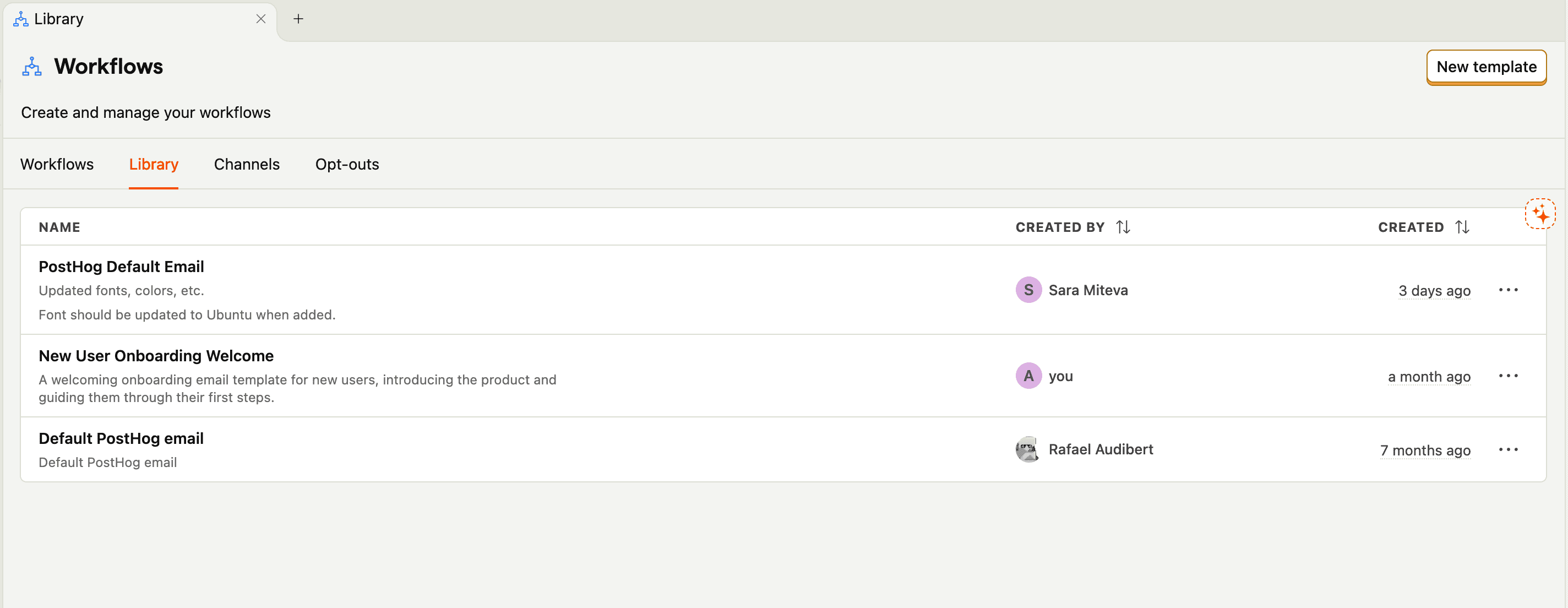
Currently, we support email templates, with push notifications and SMS templates coming soon.
Liquid and merge tags
All template types support Liquid templating to personalize your messages with user properties and data. You can type liquid directly, or use the merge tag dropdown in your message templates, which will show you the entire list of available person properties (see email example below).
When using Liquid with existing user properties, you should include a default value if the property could be null or may not exist. For example:
This ensures your message displays correctly even when a property is missing.
Email merge tags
In addition to person properties, PostHog provides these system merge tags for email templates:
| Merge tag | Description |
|---|---|
{{unsubscribe_url}} | Links to a page where recipients can manage their email preferences |
{{unsubscribe_url_one_click}} | Enables RFC 8058-compliant one-click unsubscribe. When email clients send a POST request to this URL, recipients are automatically unsubscribed from all marketing emails. When clicked directly, it displays an unsubscribe confirmation page. |
Use the one-click unsubscribe URL to improve email deliverability and comply with email regulations like CAN-SPAM. Most modern email clients display a prominent unsubscribe button when they detect proper one-click unsubscribe headers.
Email templates
When you click on new template you will see a page like this:
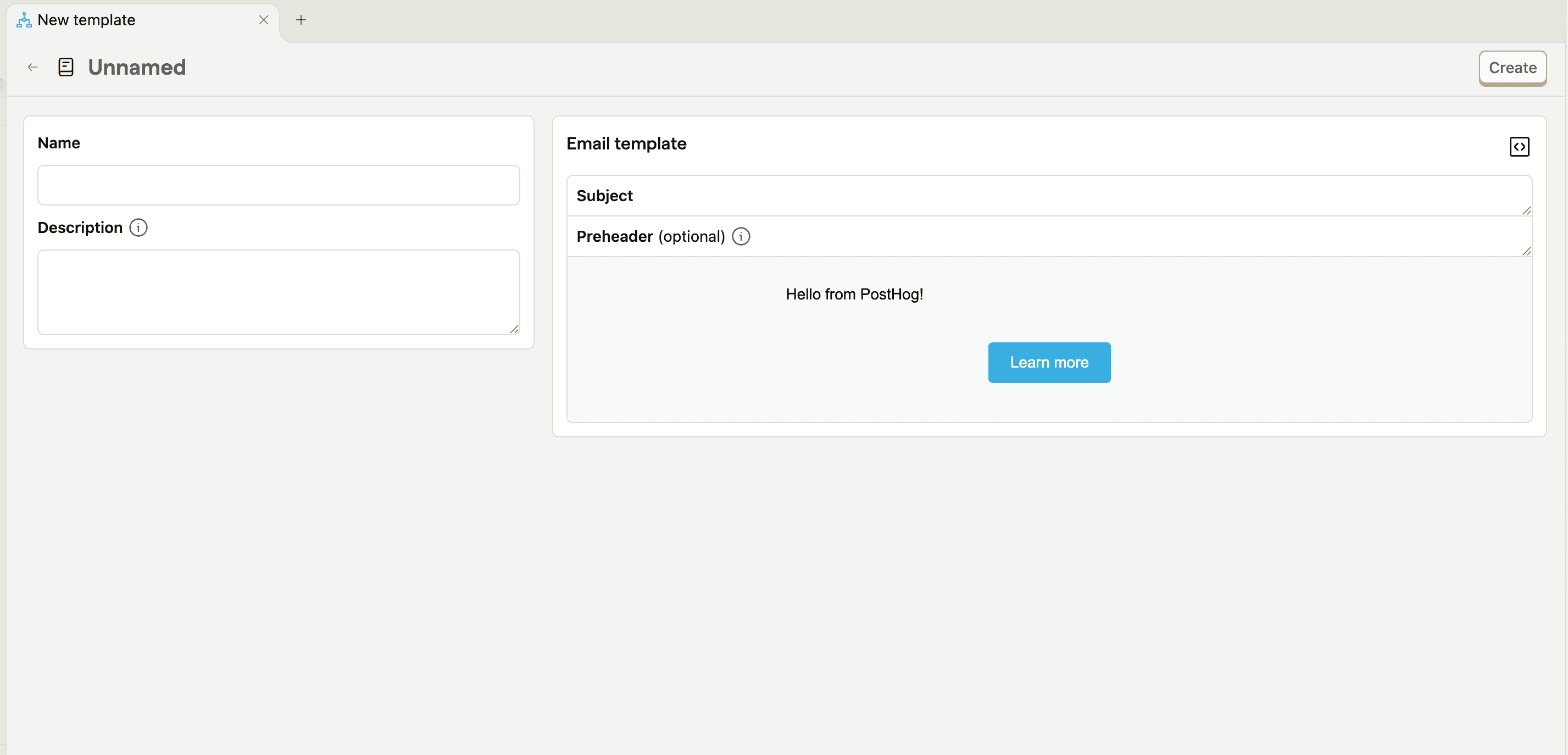
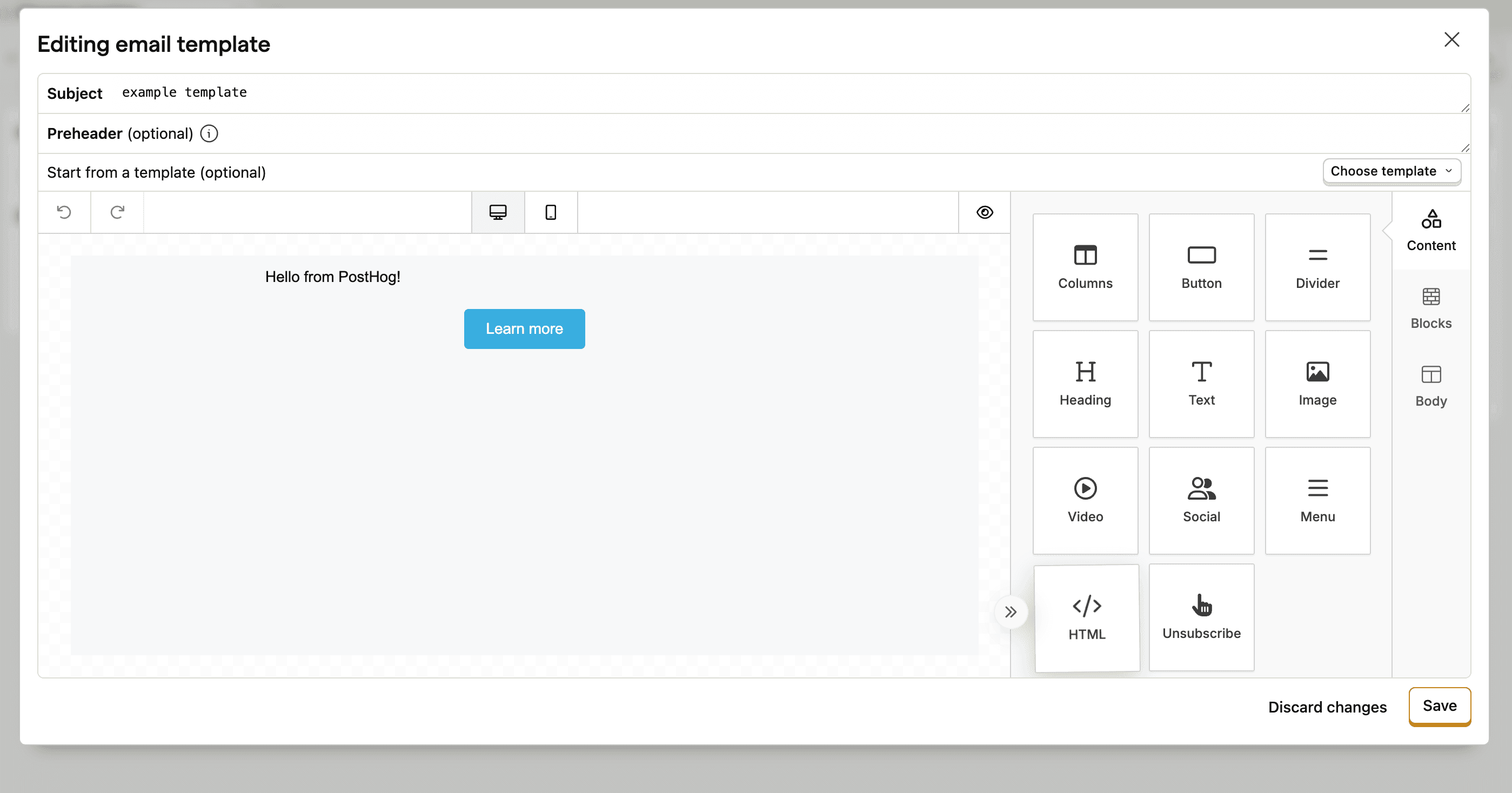
This is our drag-and-drop email builder, which you can use to quickly build email templates. To save the template, you will need to give the template a name, and a subject for the email.
The builder allows you to:
- Drag different types of content into the email like columns, buttons, text etc.
- Format the content with blocks, breaking up content into multiple sections for example
- Adjust fonts, colors and padding in the body selector
Additionally our builder also supports custom HTML — just drag the HTML box into your template to add custom HTML code.
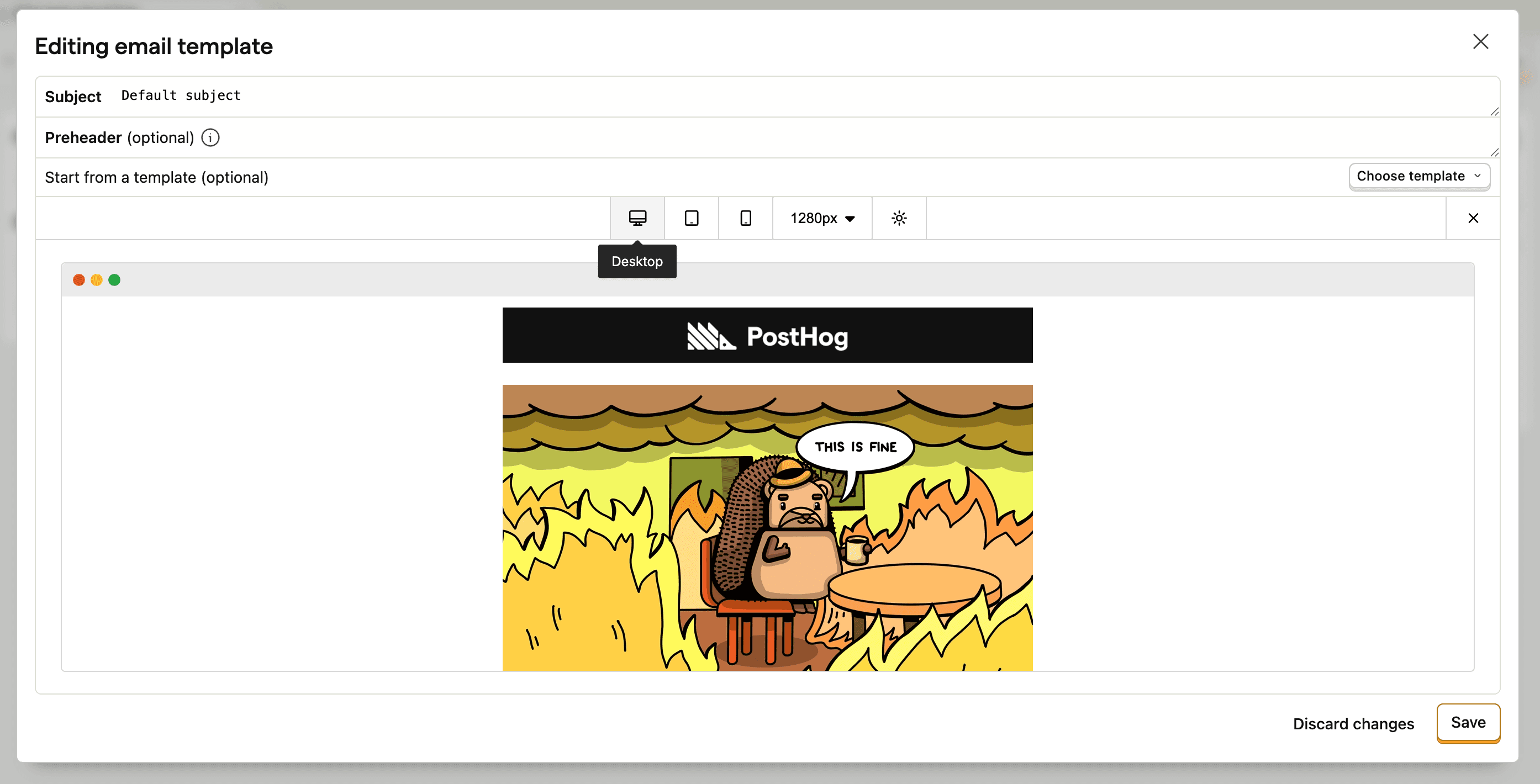
Once you've mocked up your email, you can preview what the email would look like on different device types (desktop, tablet, and mobile) to ensure it displays correctly across all platforms.
Using Liquid in email templates
You can type Liquid syntax directly into your email template. We also provide a merge tags dropdown that you can click to see all available user properties and easily insert them into your template.

If you type Liquid syntax directly and the Liquid doesn't compile correctly, the email won't be sent. Always verify your Liquid syntax is valid before starting a workflow.
Testing templates
It's best practice to test a message in a workflow before starting the workflow. This helps ensure your template displays correctly with real user data and that all Liquid variables resolve properly.