Nuxt error tracking installation (v3.6 and below)

  1. Install the package

    Required

    Install the PostHog JavaScript library using your package manager:

    npm install posthog-js
    Nuxt version

    This guide is for Nuxt v3.0 and above. For Nuxt v2.16 and below, see our Nuxt docs.

  2. Add environment variables

    Required

    Add your PostHog API key and host to your nuxt.config.js file:

    nuxt.config.js
    export default defineNuxtConfig({
    runtimeConfig: {
    public: {
    posthogPublicKey: '<ph_project_api_key>',
    posthogHost: 'https://us.i.posthog.com',
    posthogDefaults: '2026-01-30'
    }
    }
    })
  3. Create a plugin

    Required

    Create a new plugin by creating a new file posthog.client.js in your plugins directory:

    plugins/posthog.client.js
    import { defineNuxtPlugin } from '#app'
    import posthog from 'posthog-js'
    export default defineNuxtPlugin(nuxtApp => {
    const runtimeConfig = useRuntimeConfig();
    const posthogClient = posthog.init(runtimeConfig.public.posthogPublicKey, {
    api_host: runtimeConfig.public.posthogHost,
    defaults: runtimeConfig.public.posthogDefaults,
    loaded: (posthog) => {
    if (import.meta.env.MODE === 'development') posthog.debug();
    }
    })
    return {
    provide: {
    posthog: () => posthogClient
    }
    }
    })
  4. Server-side setup

    Optional

    To capture events from server routes, install posthog-node and instantiate it directly. You can also use it to evaluate feature flags on the server:

    npm install posthog-node
    server/api/example.js
    import { PostHog } from 'posthog-node'
    export default defineEventHandler(async (event) => {
    const runtimeConfig = useRuntimeConfig()
    const posthog = new PostHog(
    runtimeConfig.public.posthogPublicKey,
    { host: runtimeConfig.public.posthogHost }
    )
    posthog.capture({
    distinctId: 'distinct_id_of_the_user',
    event: 'event_name'
    })
    await posthog.shutdown()
    })
  5. Send events

    Click around and view a couple pages to generate some events. PostHog automatically captures pageviews, clicks, and other interactions for you.

    If you'd like, you can also manually capture custom events:

    JavaScript
    posthog.capture('my_custom_event', { property: 'value' })
  6. Manually capturing exceptions

    Optional

    To send errors directly using the PostHog client, import it and use the captureException method like this:

    Vue
    <script>
    const { $posthog } = useNuxtApp()
    if ($posthog) {
    const posthog = $posthog()
    posthog.captureException(new Error("Important error message"))
    }
    </script>

    On the server side, you can use the posthog object directly.

    server/api/example.js
    const runtimeConfig = useRuntimeConfig()
    const posthog = new PostHog(
    runtimeConfig.public.posthogPublicKey,
    {
    host: runtimeConfig.public.posthogHost,
    }
    );
    try {
    const results = await DB.query.users.findMany()
    return results
    } catch (error) {
    posthog.captureException(error)
    }
  7. Configuring exception autocapture

    Recommended

    Update your posthog.client.js to add an error hook.
    JavaScript
    export default defineNuxtPlugin((nuxtApp) => {
    ...
    nuxtApp.hook('vue:error', (error) => {
    posthogClient.captureException(error)
    })
    ...
    })
  8. Verify error tracking

    Recommended
    Confirm events are being sent to PostHog
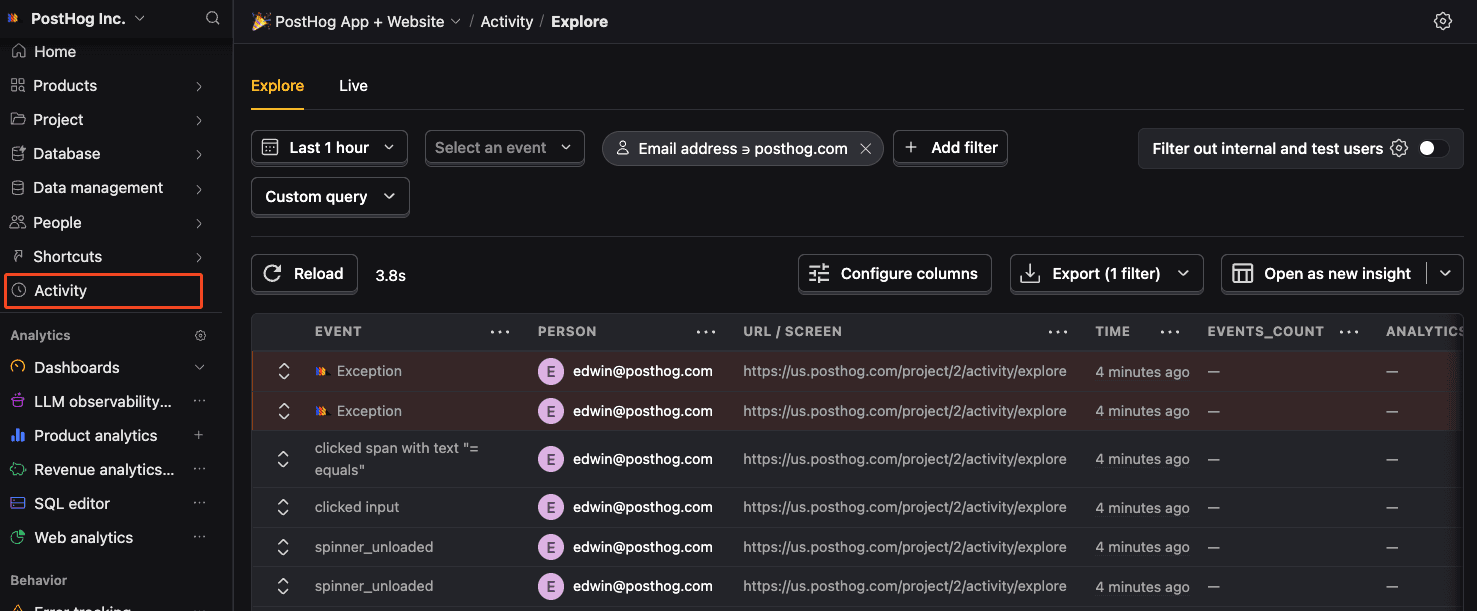
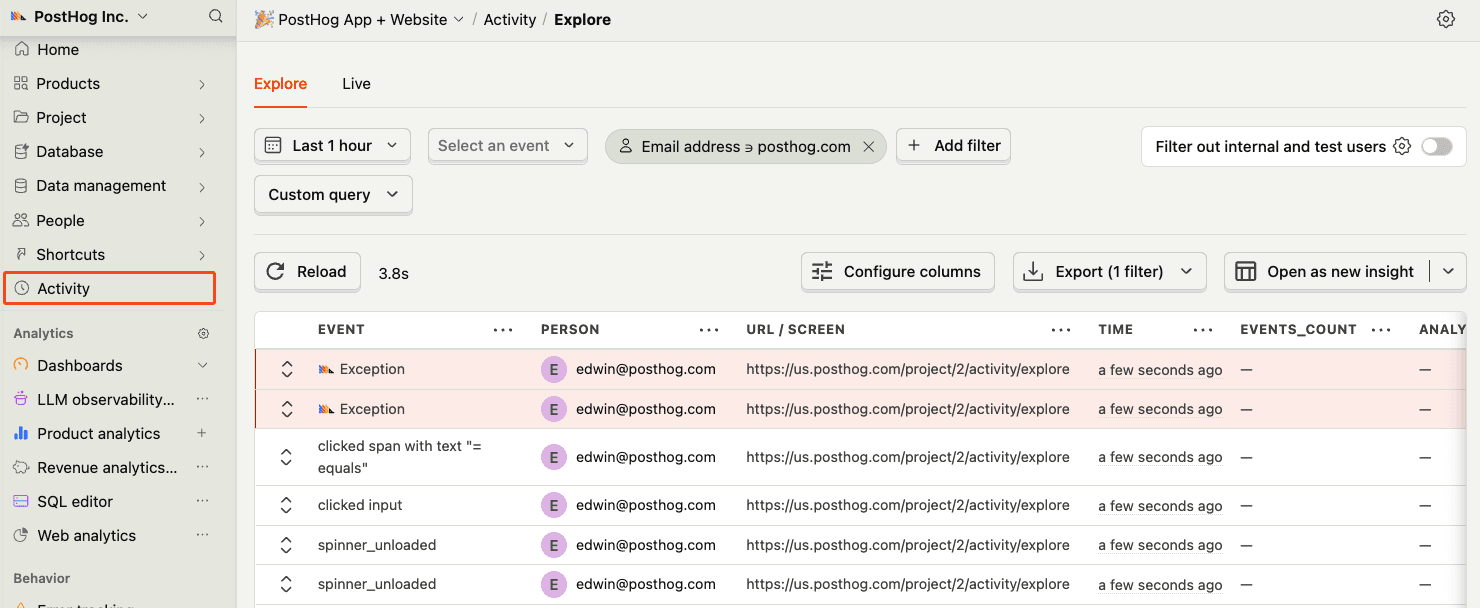
    Before proceeding, let's make sure exception events are being captured and sent to PostHog. You should see events appear in the activity feed.
    Activity feed with events
    Check for exceptions in PostHog

Community questions

Was this page useful?

Questions about this page? or post a community question.