Nuxt error tracking installation (v3.7 and above)

  1. Install the PostHog Nuxt module

    Required

    Install the PostHog Nuxt module using your package manager:

    npm install @posthog/nuxt

    Add the module to your nuxt.config.ts file:

    nuxt.config.ts
    export default defineNuxtConfig({
    modules: ['@posthog/nuxt'],
    // Enable source maps generation in both vue and nitro
    sourcemap: {
    client: 'hidden'
    },
    nitro: {
    rollupConfig: {
    output: {
    sourcemapExcludeSources: false,
    },
    },
    },
    posthogConfig: {
    publicKey: '<ph_project_api_key>', // Find it in project settings https://app.posthog.com/settings/project
    host: 'https://us.i.posthog.com', // Optional: defaults to https://us.i.posthog.com. Use https://eu.i.posthog.com for EU region
    clientConfig: {
    capture_exceptions: true, // Enables automatic exception capture on the client side (Vue)
    },
    serverConfig: {
    enableExceptionAutocapture: true, // Enables automatic exception capture on the server side (Nitro)
    },
    sourcemaps: {
    enabled: true,
    envId: '<ph_environment_id>', // Your project ID from PostHog settings https://app.posthog.com/settings/environment#variables
    personalApiKey: '<ph_personal_api_key>', // Your personal API key from PostHog settings https://app.posthog.com/settings/user-api-keys (requires organization:read and error_tracking:write scopes)
    project: 'my-application', // Optional: defaults to git repository name
    version: '1.0.0', // Optional: defaults to current git commit
    },
    },
    })
    Personal API Key

    Your Personal API Key will require organization:read and error_tracking:write scopes.

    The module will automatically:

    • Initialize PostHog on both Vue (client side) and Nitro (server side)
    • Capture exceptions on both client and server
    • Generate and upload source maps during build
  2. Manually capturing exceptions

    Optional

    Our module if set up as shown above already captures both client and server side exceptions automatically.

    To send errors manually on the client side, import it and use the captureException method like this:

    Vue
    <script>
    const { $posthog } = useNuxtApp()
    if ($posthog) {
    const posthog = $posthog()
    posthog.captureException(new Error("Important error message"))
    }
    </script>

    On the server side instantiate PostHog using:

    server/api/example.js
    const runtimeConfig = useRuntimeConfig()
    const posthog = new PostHog(
    runtimeConfig.public.posthogPublicKey,
    {
    host: runtimeConfig.public.posthogHost,
    }
    );
    try {
    const results = await DB.query.users.findMany()
    return results
    } catch (error) {
    posthog.captureException(error)
    }
  3. Build your project for production

    Required
    Build your project for production by running the following command:

    Terminal
    nuxt build

    The PostHog module will automatically generate and upload source maps to PostHog during the build process.

  4. Verify error tracking

    Recommended
    Confirm events are being sent to PostHog
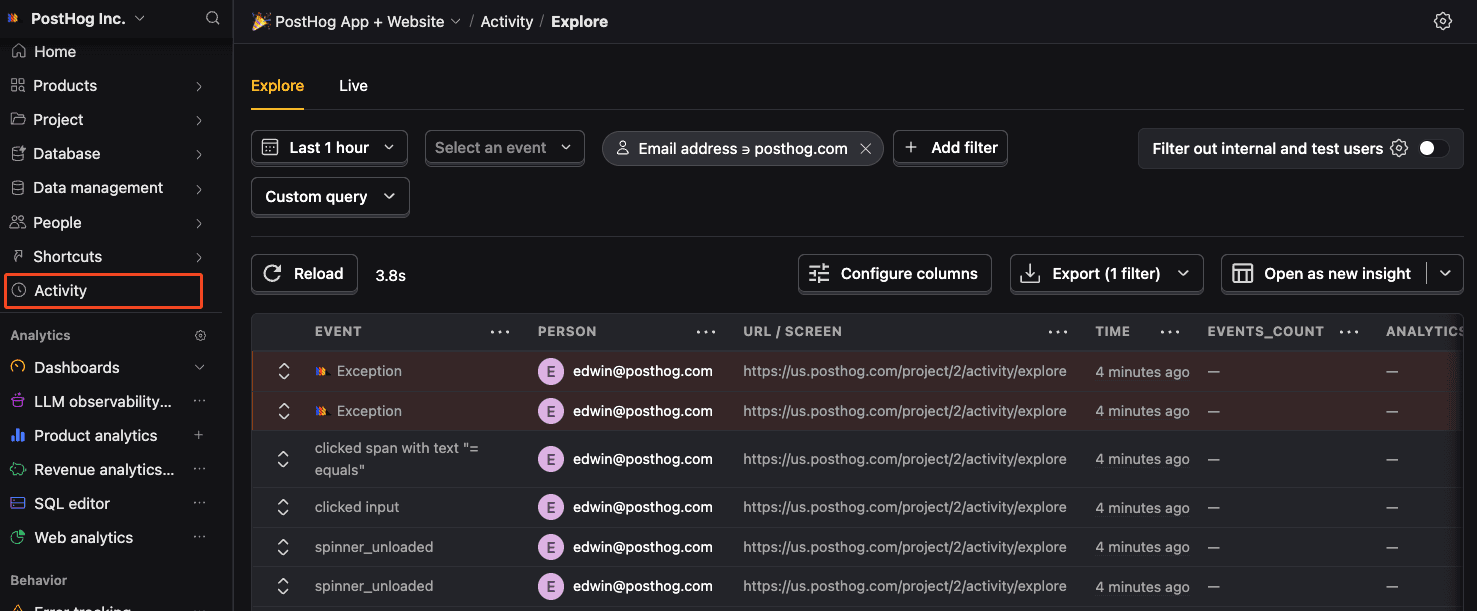
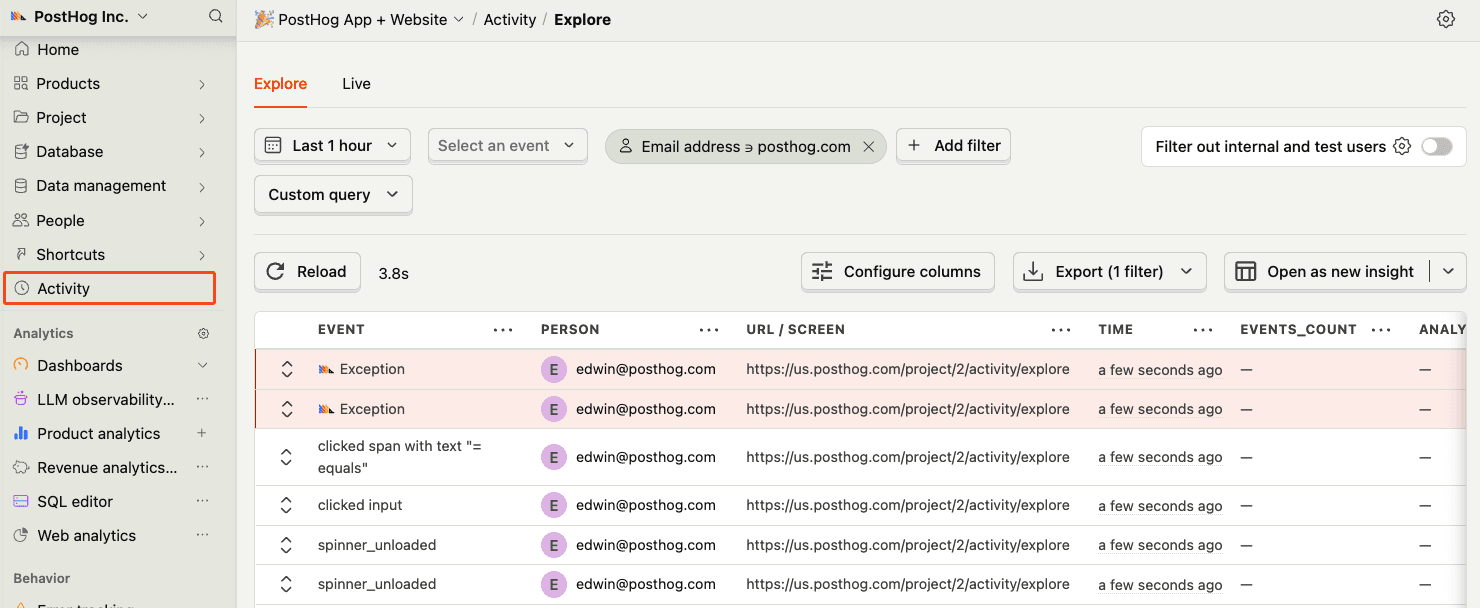
    Before proceeding, let's make sure exception events are being captured and sent to PostHog. You should see events appear in the activity feed.
    Activity feed with events
    Check for exceptions in PostHog
  5. Upload source maps

    Required

    Great, you're capturing exceptions! If you serve minified bundles, the next step is to upload source maps to generate accurate stack traces.

    Let's continue to the next section.

    Upload source maps

Community questions

Was this page useful?

Questions about this page? or post a community question.